Running Steps and Viewing Results
Run a step and Pointy keeps the result together with the inputs, software, and parameters that produced it. You can inspect the files, compare them with another run, or send a colleague a link to what you are looking at.
Running a step
Click Run on the step you want to use. If it needs results from other steps, Pointy runs those first. It reuses results that are already available for the same inputs and settings.
Run is offered on steps that are Not Started, Failure, Not Certified, or Certification Failed; it disappears while a step is running or successful. If the step's form is open, Run saves it first and builds the saved version.

Step statuses
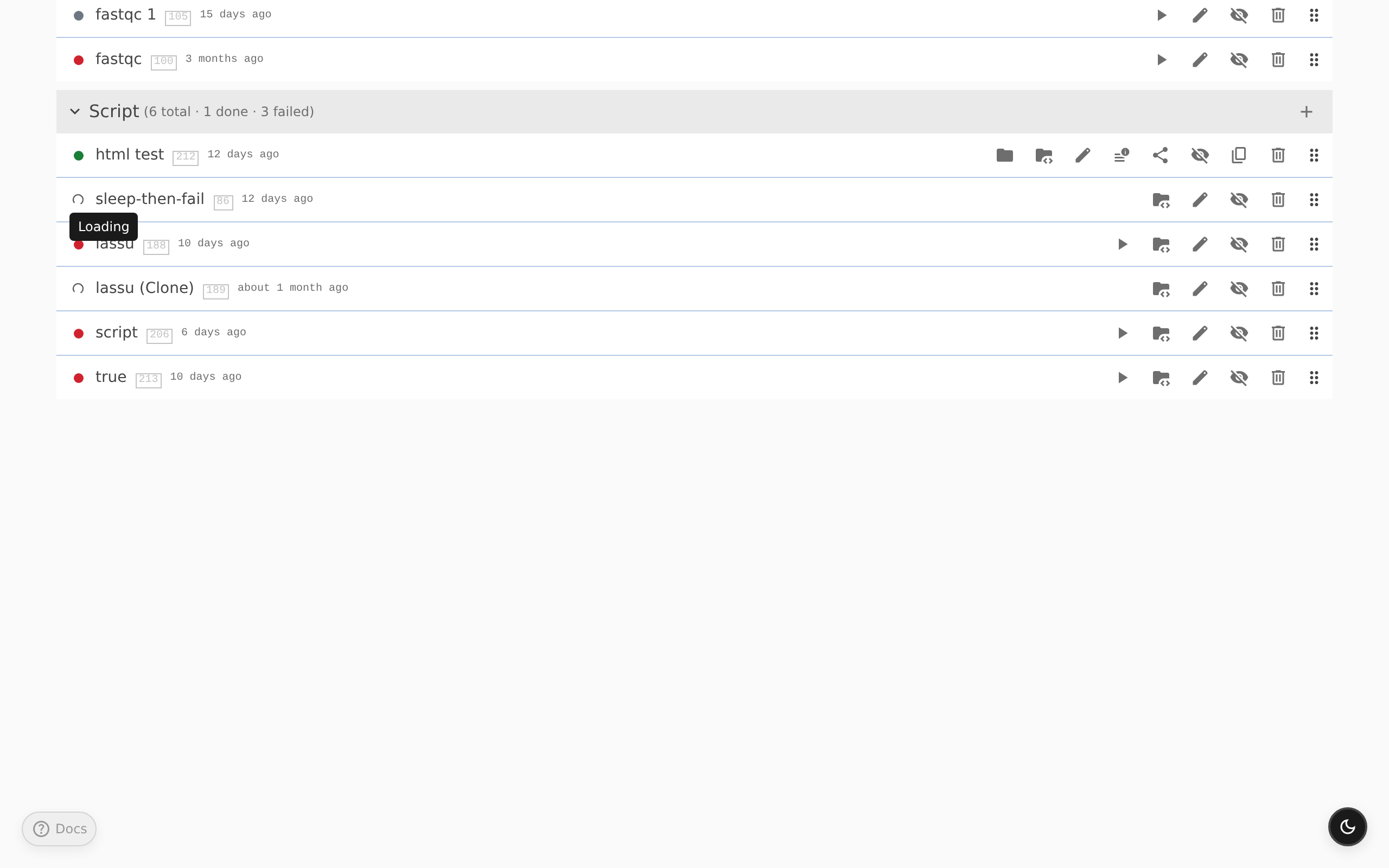
The dot beside a step shows its progress:
- Not Started: there is no result available yet.
- Running: the step is queued or running. Uploading and indexing also show this dot.
- Success: the program finished and its output files are available.
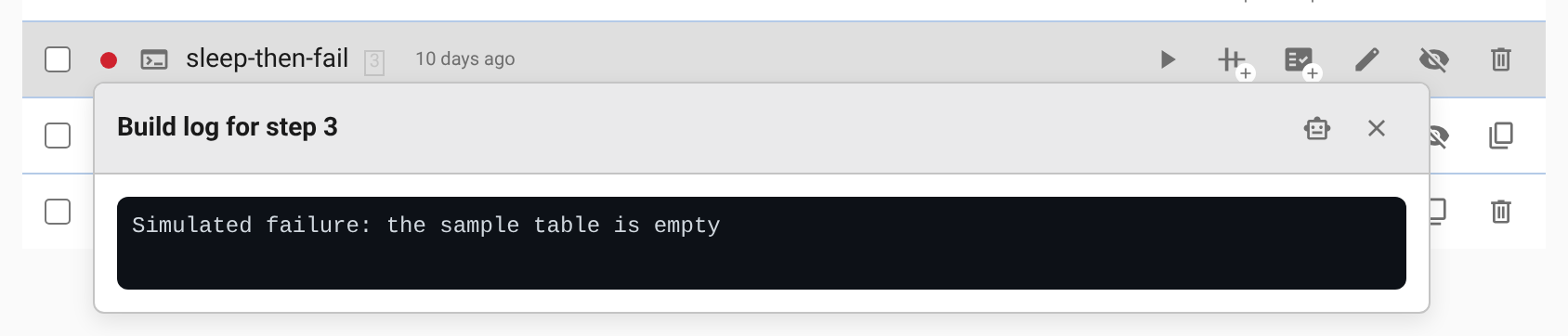
- Failure: the run failed. Hover over the dot for an error summary, or click it to read the log.
- Not Certified: the step's output was built, but Pointy has not confirmed that it matches the output type its template declares.
- Certification Failed: the step's output was built, but the check against the declared output type failed. Click the dot to read the log.
- Loading: Pointy is checking the status, or waiting for a run to start.
The display updates automatically; you do not need to keep refreshing the page.
Keeping track of work
The bottom status bar shows the state of the computing service and how many steps are running. The dot is plain when the service is available; when a problem is known, the bar shows Degraded or Unavailable followed by a short reason. Hover over it for the full sentence.
Click the running count to see the list, then choose a step to return to it. The count covers the whole instance; a step you are uploading or indexing on this page counts as running too. Idle means no steps are running; it does not necessarily mean the computing service is unavailable.
The bar also identifies the version you are viewing: the branch and current commit. From an older version it shows Past · View current, which returns you to the current version. Agent, Docs, and the light/dark controls are here too.

When a run started from this page finishes, a toast names the step, for example Step 'Read QC' completed. Failed runs do not raise a toast; their dot turns red. For a failed step, open its log and choose Investigate with agent. The log is included in the chat, so you can ask what went wrong without copying the error. See AI Agent.
Stopping a running step
While a step is running, Stop appears in place of Run. Use it to cancel the run before changing the step and trying again. Pointy replaces the button with a disabled Stopping button until the step stops, and the cancelled run ends as Failure. Stop cancels only this step's own run: input steps that had already started keep running.

Uploading files
File-upload steps have Upload files instead of Run. The file picker shows the formats accepted by that template.
You can submit one or more files at a time, follow the transfer progress, and cancel an upload in progress. A single submission accepts at most 100 files; larger sets should be packaged as a zip archive or divided among several file-upload steps.
After the transfer, Pointy indexes the uploaded files and shows the progress on the step row. When indexing finishes, the page runs the step; keep the page open until the run starts. Each upload replaces the step's data rather than adding to it, so upload everything a step needs in one go.
If your installation has a scratch space, file-upload steps also have From scratch. It opens a browser for the server-side scratch directory. Open the folder that holds your data and choose Wrap this directory. The whole folder becomes the step's input without passing through your browser; the scratch root itself cannot be wrapped. Indexing takes some time, but nothing is copied or moved.

Browsing output files
Use the Browse output files button on a step with a result, or click anywhere on its row header. Expand folders, preview files, or download them. You can share a link to all the results, one folder or file, or selected lines of text.
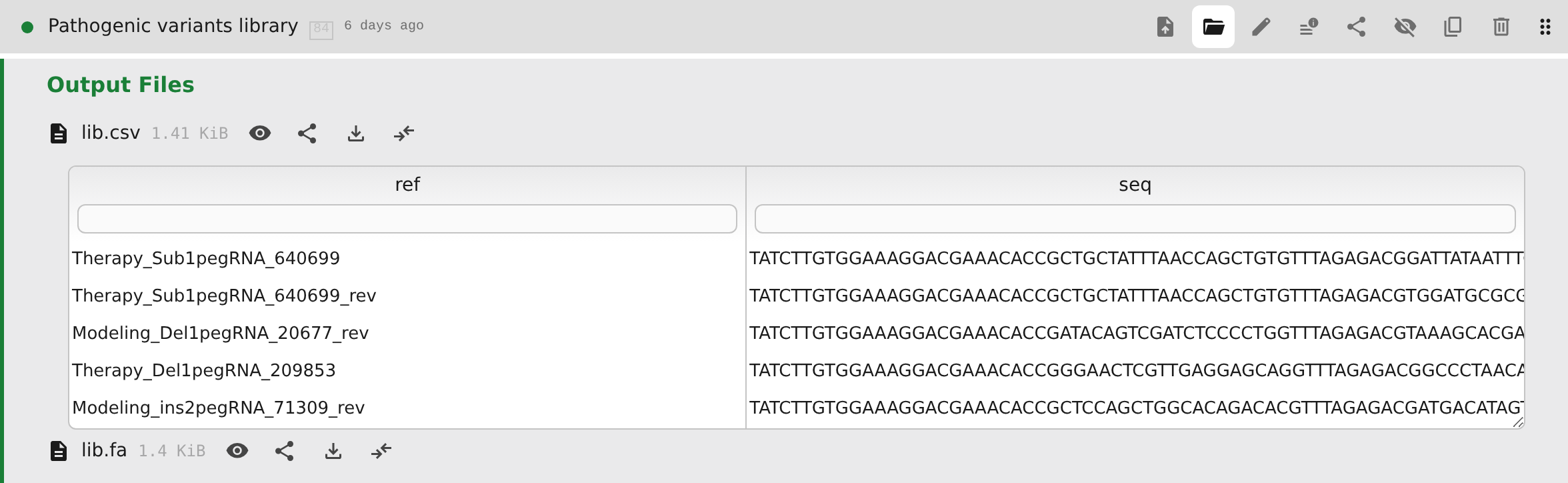
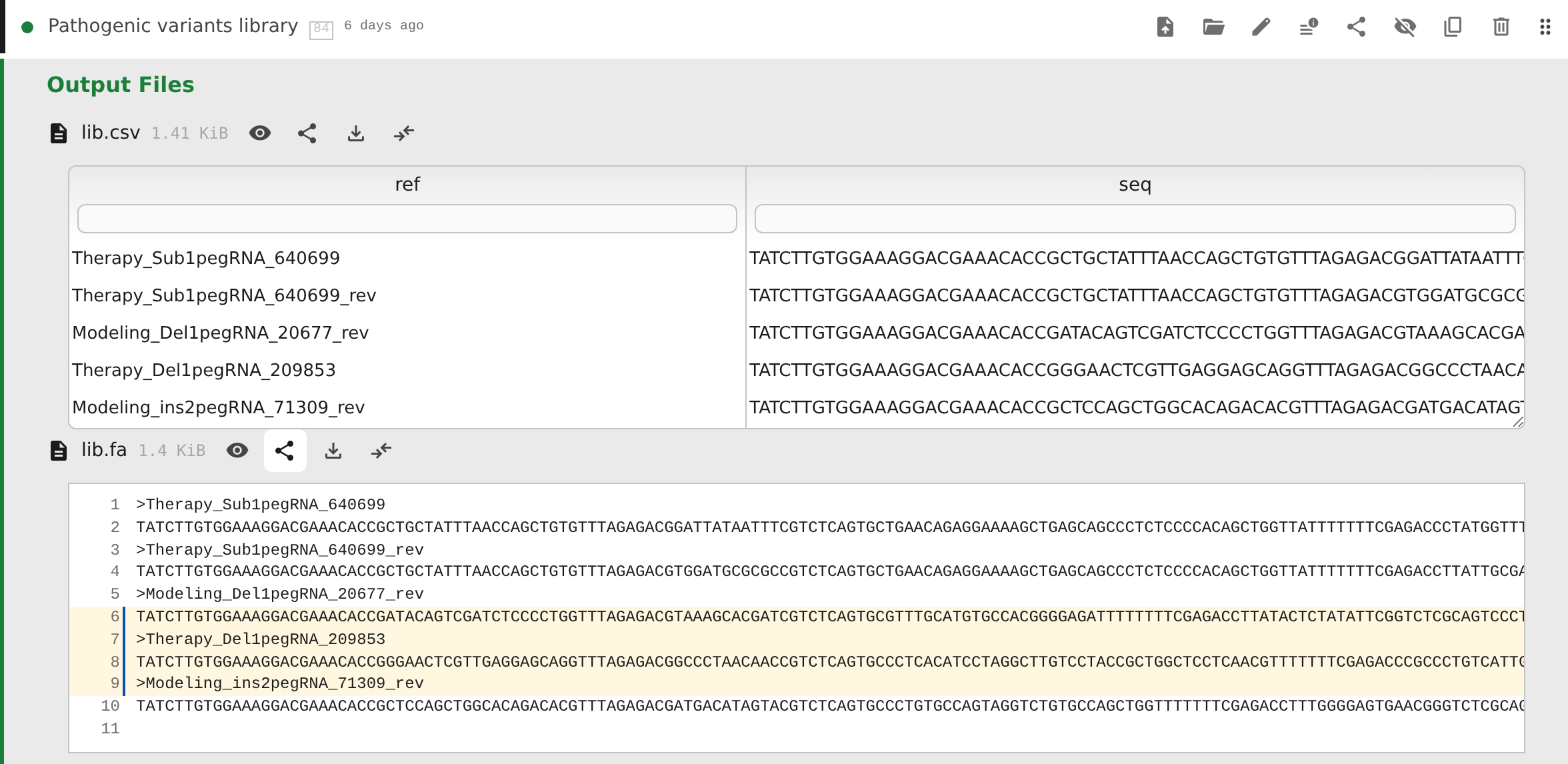
For text files, click a line number to select one line, or drag over the line numbers to select a range. The address bar updates as you select, and the file's Share button becomes Share lines a-b. The link opens the same version of the file with those lines highlighted.
Large text files are loaded a section at a time as you scroll, rather than all at once.
Download retrieves the complete file regardless of size.
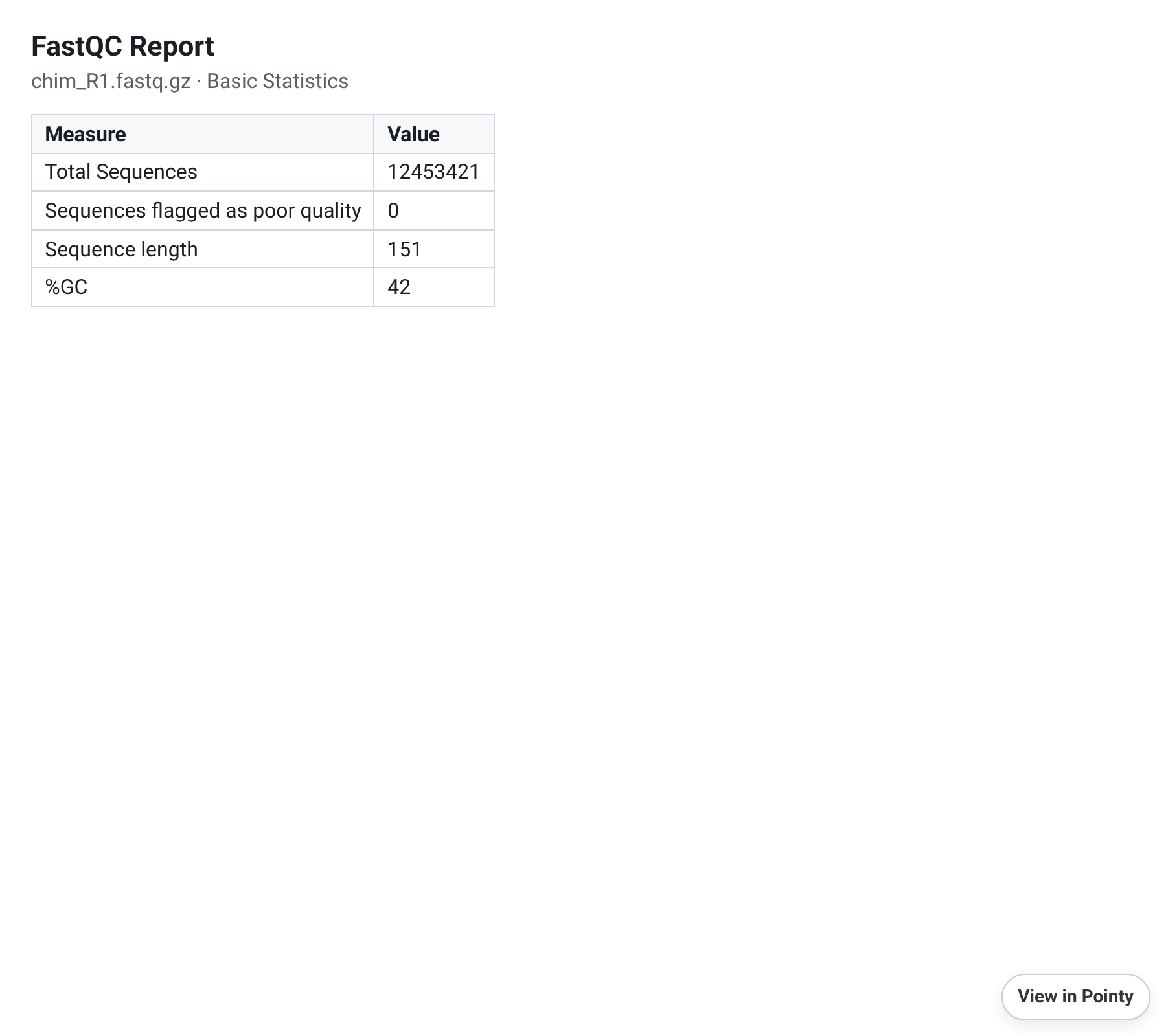
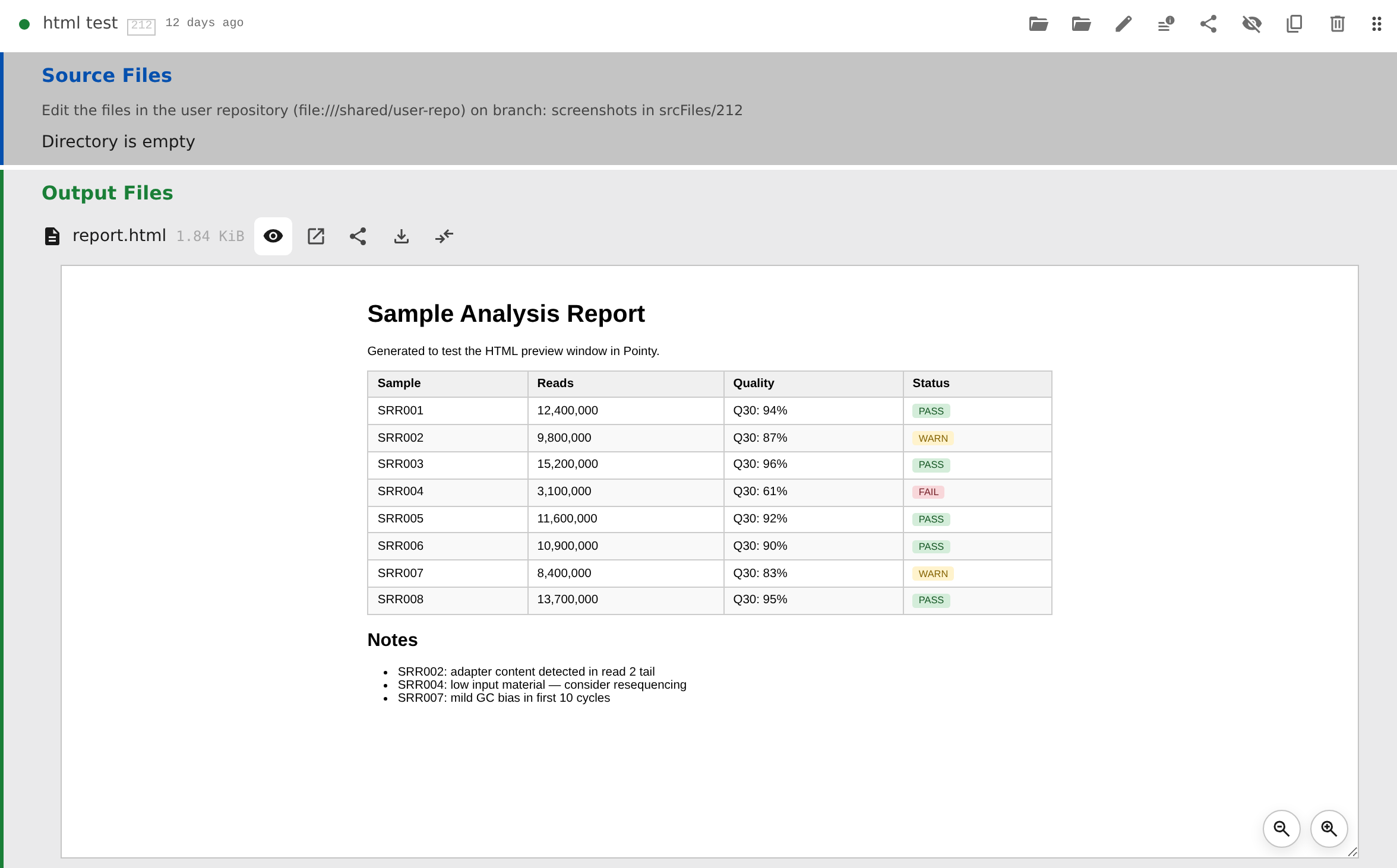
HTML reports open inline; their magnifier buttons zoom in and out. Every output file also has View external, which opens the file in a full-window view in a new tab. That view includes a View in Pointy link back to the step.
Images open inline, and PDB output files have an interactive molecular viewer. Zip archives can be expanded like folders, so you can inspect their contents without downloading and unpacking the whole archive. The archive's download button still retrieves the zip file itself.
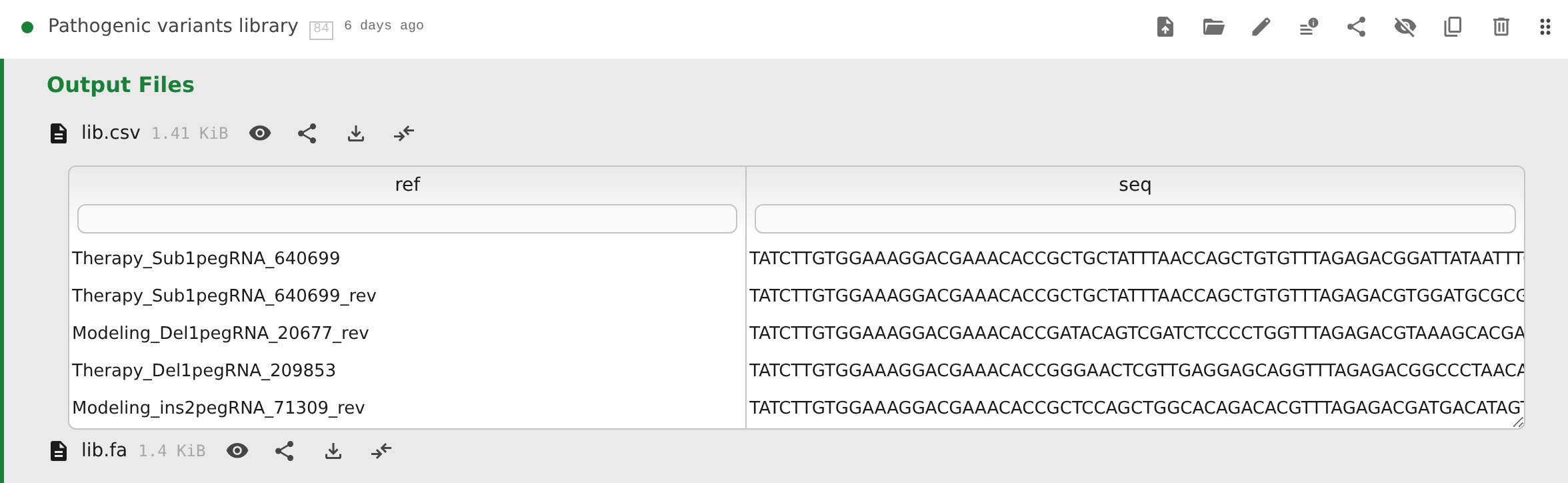
CSV and TSV grid preview
CSV and TSV output files open as a table you can sort and filter.
Use Grid viewer for the table or Regular viewer for the original text with line numbers. Links to selected lines open in the regular viewer.
Each column has:
- a header you can click to cycle ascending → descending → unsorted
- a filter input below the header
- a draggable right-edge handle for resizing
The filter input recognizes four modes per column:
foo: show rows containing “foo”, ignoring upper- and lowercase=foo: show only values equal to “foo”, ignoring upper- and lowercase<5.3/>5.3: compare numbers where possible; other values are compared as text- an empty filter shows all rows
The row count shows how many rows match your filters. Some templates provide information about which columns contain numbers. Without that information, values sort as text, so “10” can appear before “2”. Pointy may still be preparing this information the first time you open a folder; try again once that work has finished. If sorting remains unsuitable, ask your administrator about the template.
Source files
A step may have Source Files, such as a script, a configuration file, or a small sample table. These are files the step uses, not results it produces. The agent can edit them, and you can inspect or edit them yourself. The Source Files section is part of the step's Edit form, so the step must exist before you can add files to it.
To edit them in Pointy, open the step's Edit form:
- Open a text file with its Edit … button, labelled with the file name, and change its contents, or choose New file, enter a name and contents, and click Create.
- Use Delete to remove a file or Restore to cancel its planned deletion. Check the New, Changed, and Deleted badges before saving.
- Click the step form's Save to keep the changes. Cancel discards the unsaved changes.
Create and Delete do not save immediately; you still need to click Save on the step. If saving fails, some files may already have been saved. Reopen the step and check them before trying again.
Source files on a reviewed step or in a read-only view cannot be edited. You can still browse and download them, and share a selected line range. Remove the review, make a copy of the step, or return to the current version if you need to make changes.

Comparing files
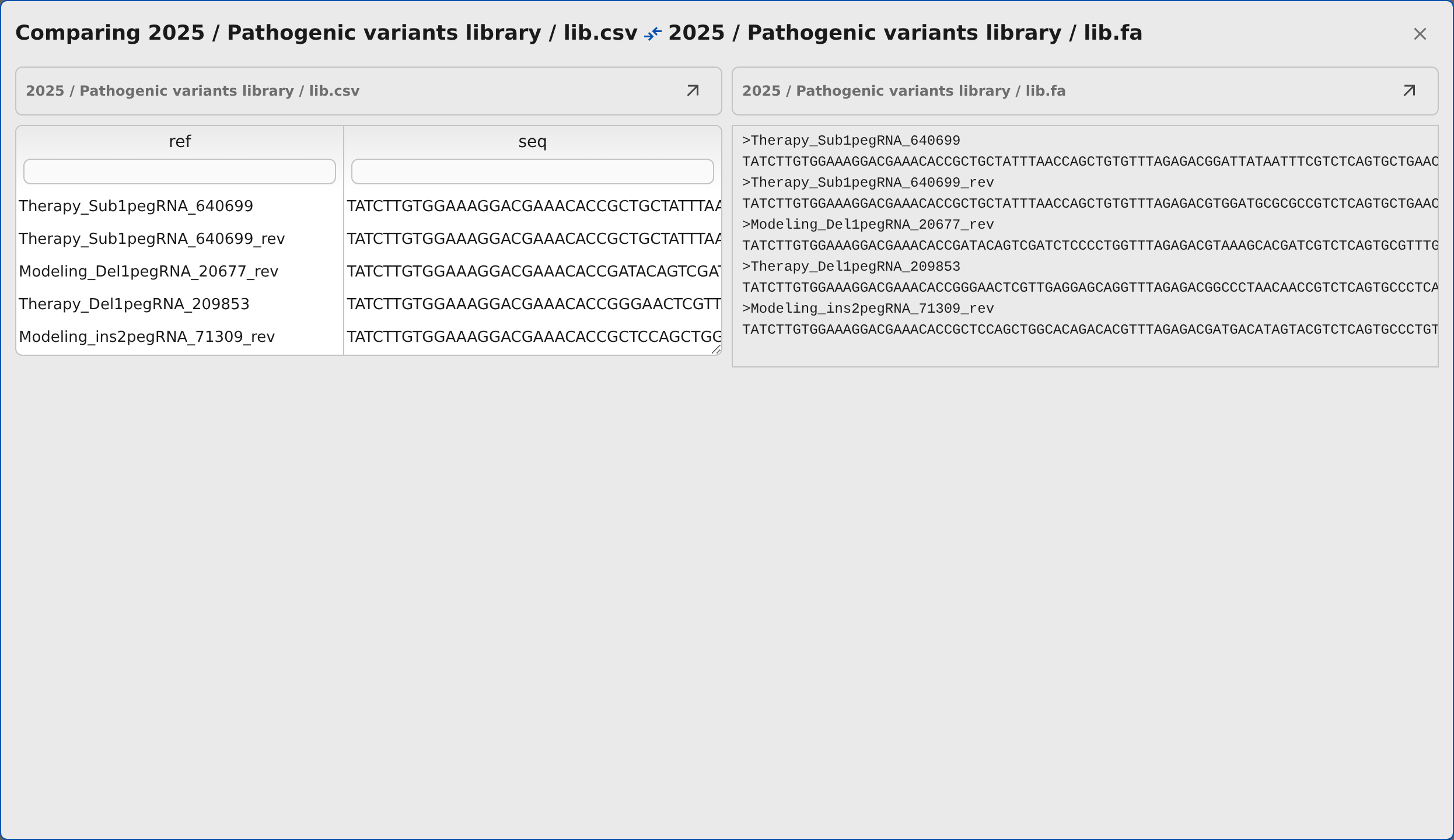
Click Compare on the first file, then choose a second file you can preview. It can come from the same step or another step, and can be an output or source file. Use Cancel in the comparison banner if you picked the wrong first file.

After you pick the second file, Pointy opens them side by side. Copy the browser address to reopen or share that comparison. For output files, the link keeps the versions you selected.
The comparison dialog adapts to the file type:
- text files are shown side by side, with differing lines highlighted
- CSV and TSV files use the same sortable, filterable grid preview as the normal file browser
- images are shown side by side
- HTML reports open in separate preview panels
For analysis outputs, you can also inspect the step parameters that produced each file. Open source in project takes you back to that file in its folder.
Reviewing results
Success tells you that the program ran, not that the result is scientifically sound. Pointy also checks the result against the output type its template declares; reviewing is still your call. Once you have checked a step's output, open Review step, fill in Reviewed by, optionally add Comments, and save. The review records which version you checked.
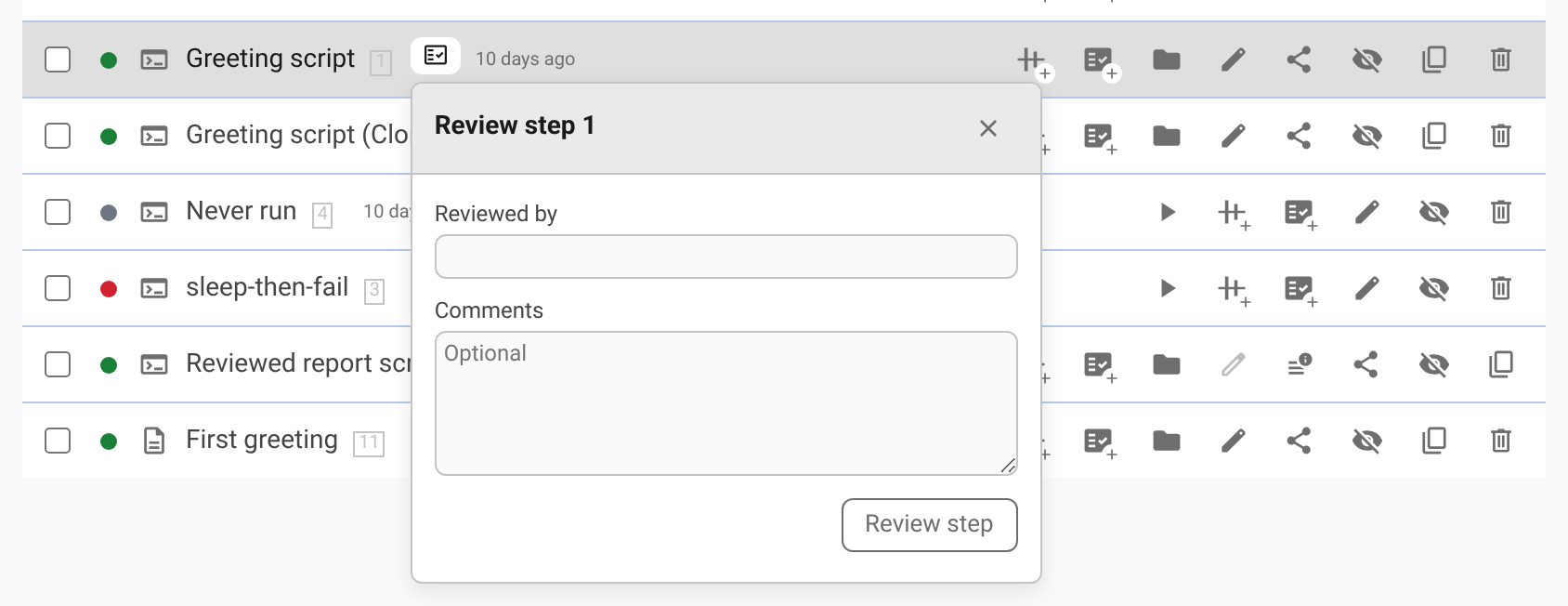
The reviewed step is locked against changes to its parameters, uploads, and source files. It keeps showing the result you reviewed. If its inputs or template change later, Pointy helps you compare the new result without replacing the one you approved.
The review shows how the result for the version you are viewing compares with the reviewed result:
| What you see | What it means |
|---|---|
| Reviewed version, without a comparison warning | Pointy is using the same saved output. |
| Same content | This version produces exactly the same files as the reviewed version. |
| Not built | Results for this version are not available yet. Use Build latest version to run it for comparison. |
| View diff | The files differ. Open the comparison here or in a new tab to see what changed. The reviewed result is still shown. |
| Check failed | Pointy could not complete the comparison. Read the explanation; this does not mean the results differ. |
You can update an existing review while the results match. If they differ, inspect the difference, remove the old review, and review the new result when you are satisfied. Remove review also unlocks the step. If the reviewed files are no longer available, Pointy explains why it cannot compare them; rerun the reviewed version or remove the review.
A step has the same review wherever it appears, including in older versions of a folder. Reviewed by is the name entered by the reviewer, not a verified identity. The agent cannot change a reviewed step either.
Share links and read-only views
Use Share on a step that has a result or is running, an output file or folder, or a selection of source-file lines. Failed steps do not offer the step-level share action.
A share link:
- opens the folder in a read-only view
- keeps the version you were viewing, rather than following future edits
- can open a particular step, file, folder, or selected lines of text
Your colleague sees the same saved inputs, parameters, and files, with any selected lines highlighted. They need access to the same Pointy instance; sharing a link does not make the folder public.
The read-only view still allows Run and Stop, Share, and the review controls. Editing, uploading, and organizing are disabled.
Use Past · View current in the status bar to return to the current version.

