Managing Folders
A folder keeps related steps together. Folders hold steps and other folders, so you can nest an analysis as deep as you like. The listing and the organize controls call these containers folders; a few older forms and messages still say "project", such as Edit project and the Project name field.
You can ask the AI Agent to set up or change the analysis, then check its work before applying it. For smaller changes, you can also edit steps yourself.
Home and the folder tree
Home is the root folder, at /. A subfolder's URL lists the folder ids from Home down, for example /project/1/2. If a saved URL no longer matches the current tree, Pointy opens the last folder in it. If that folder no longer exists, the page shows Project not found with a Go home link.
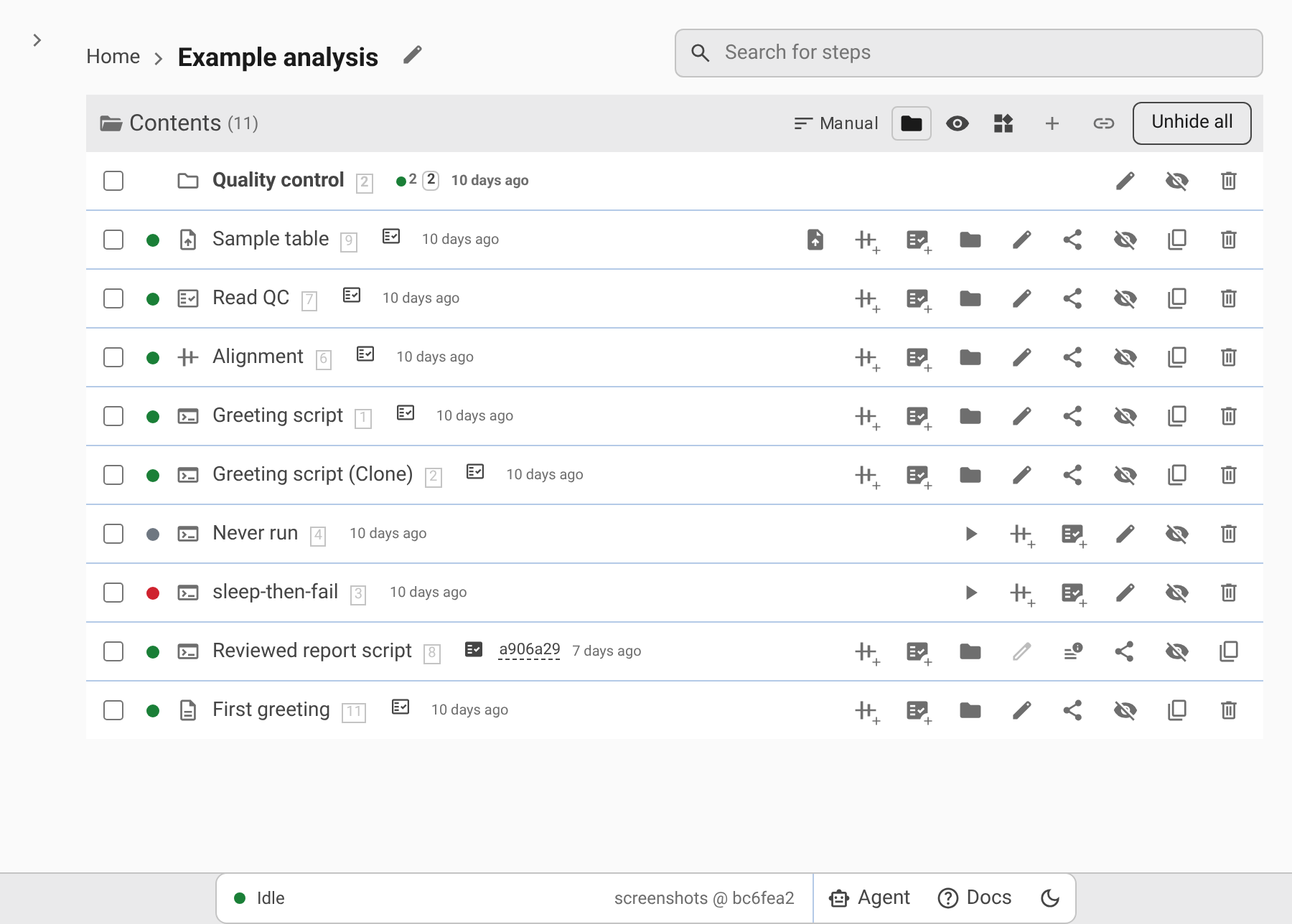
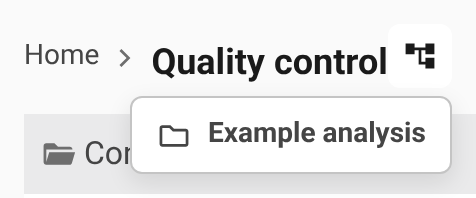
A folder page starts with breadcrumbs that name the whole path, with the current folder last. When the folder is also linked from somewhere else, an Also in button next to its name lists those other parents. Next to the breadcrumbs is Edit project, and the step search box sits on the right. Below them, the Contents listing holds one row per child, subfolders and steps together:
- A plain click opens a folder; on a step row it opens or closes the step's output files when the step has output. Ctrl/Cmd-click or Shift-click selects the row instead; see Selecting items.
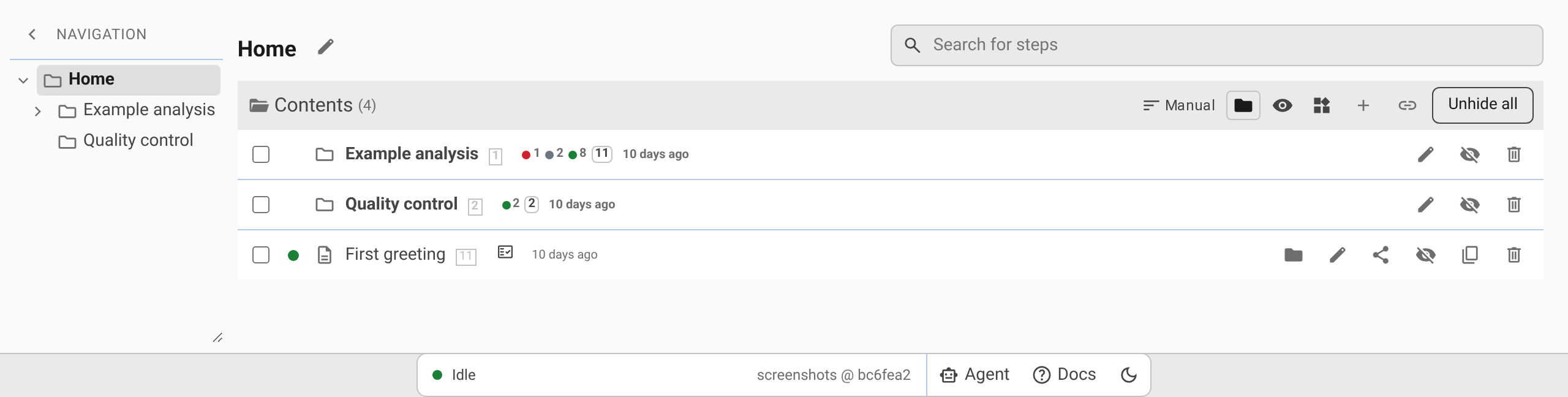
- Folder rows show their name in bold, the folder icon, and a rollup after the name: one chip per status found anywhere below the folder, then the total number of steps. Every step in the whole subtree counts once, even when it sits in several subfolders, and hidden items count too.
- Every row shows when it was last modified; hover over the time for the exact date and time. For a folder this is the last change to the folder, including changes to its contents.
The navigation drawer
The drawer on the left holds the same folder tree, starting at Home. On a wide window Pointy opens it by default; use Hide navigation in its header to collapse it to a narrow rail, and Show navigation to bring it back. Folders that contain subfolders have an expander next to them; Pointy expands the folders along the path you open, and leaves open the ones you expanded yourself. The current folder is bold. Hidden folders appear only while Show hidden is on, struck through like hidden rows.
The drawer stays open while you move between folders; it closes only when you hide it. Drag its edge to resize it, and scroll it when a folder name is too long to fit. On a window 1000 px wide or narrower the open drawer floats over the page instead of sitting beside it, and on a phone-sized window it covers the full width.
The listing header
The header above the listing shows Contents with the number of children in the folder — hidden items included — and the controls for how the listing is shown:
- Sort chooses the order: Manual (the order stored in the folder), Name, Type, Created, Modified, or Status. Choosing the active option again reverses the order; an arrow next to it shows which direction is in use.
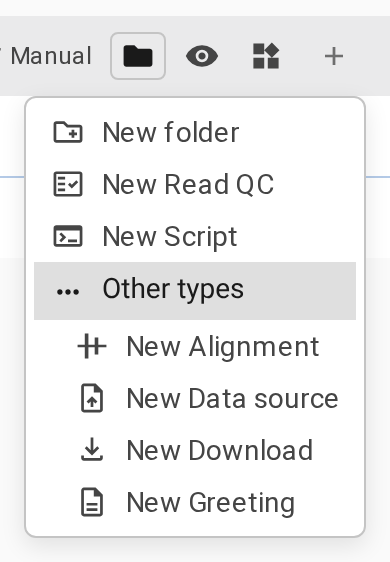
- Folders first keeps folders above steps; it is on by default. Group by type splits the listing under a Folders heading and one heading per step type that occurs. Show hidden reveals hidden items; see Hidden items.
- New opens the add menu: New folder first, then a New … entry for each of the folder's selected templates in order, and Other types with every remaining template. You can add any template's step in any folder; see Folder templates.
- Link existing links steps or folders that already exist into this folder; see Creating, renaming, and editing folders.
- Unhide all appears when this folder has hidden children, and unhides them all.
- Paste and Paste as duplicate appear while the clipboard holds items; see Cut, copy, paste, and duplicate.
The sort and the three toggles apply to every folder you open, and reset when you reload the page.

Creating, renaming, and editing folders
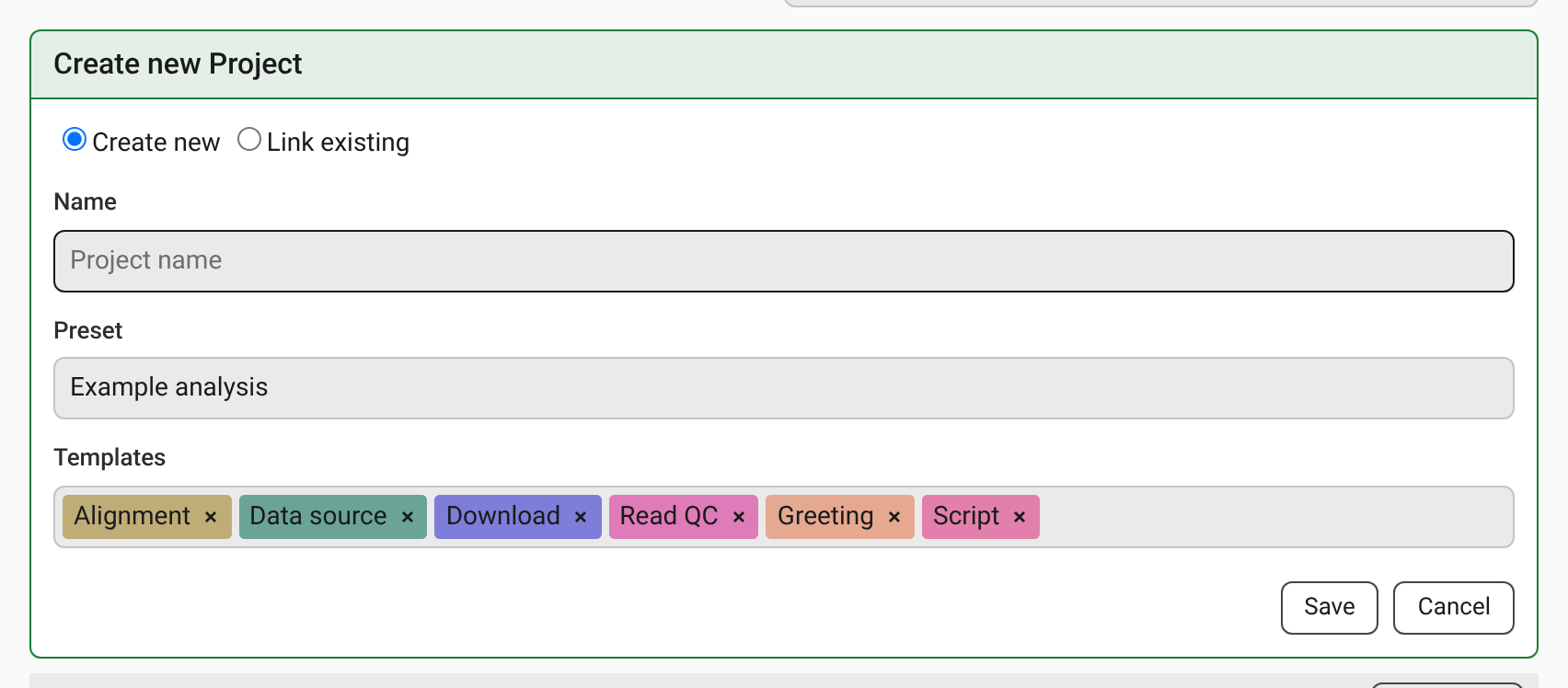
To create a folder, open the folder that should contain it and choose New folder from the New menu. The form is titled Create new Project:
- Name is the folder name; the field's placeholder is Project name.
- Preset picks one of your administrator's template bundles, such as a standard analysis. Custom (no preset) lets you choose templates yourself; adding or removing a template switches the folder to its own list.
- Templates lists the step kinds the folder puts first in its New menu.
Save creates the folder inside the current one and commits it right away. Cancel closes the form without saving. The header's Edit project button, or Edit on a folder row, opens the same form as Edit Project with the folder's current settings. The folder page form appears above the listing; the row form appears under the row, and its row shows a Saving... spinner while the change goes through.
For a quick rename, hover a folder's name in the listing and click the pencil that appears. Type the new name and press Enter or click outside the field to save; Escape cancels. Saving starts at once.
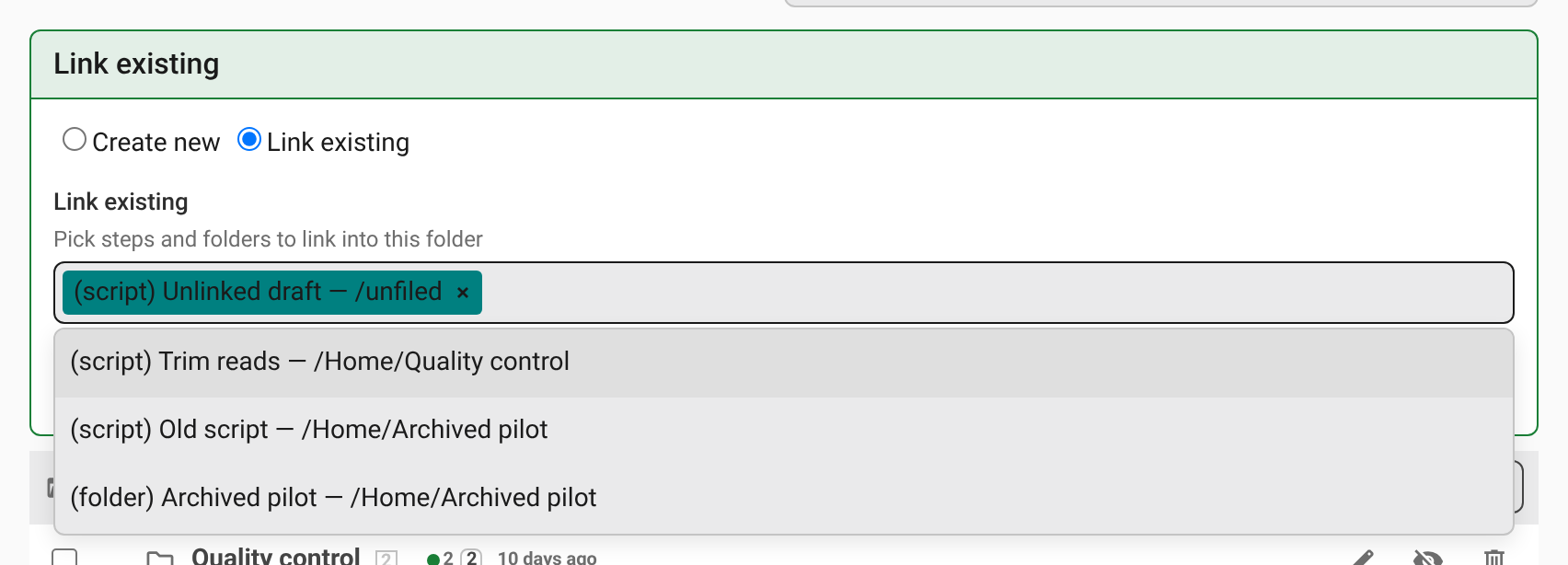
To add items that already exist instead of creating them, use Link existing in the listing header. Pick steps and folders from the list; each entry shows its type, name, and a folder path, or unfiled when the item sits in no folder, and hovering over an entry lists the folders it sits in. Save links every picked item into this folder; it is the same step or folder, so later changes stay in sync everywhere.
Folder templates
A folder's preset or template list does not filter the folder's contents: every step and subfolder stays visible whatever is selected. The selection decides three things:
- the order of the New menu, as described under The listing header;
- what a folder created inside this one with Group into new folder starts from;
- what a duplicated folder copies.
It does not decide which kinds of step you can add, and it does not control the Create … shortcuts some step rows offer; Working with Steps covers those. Pointy can also warn about a folder itself: if the folder's file no longer evaluates, the reasons appear in a box at the top of the folder, and the folder's row in its parent shows an error icon whose tooltip lists them.
The folder form's Preset field shows Custom (no preset) once you edit the template list yourself. Choosing Custom (no preset) keeps the preset's templates as an editable starting list.
Selecting items and the action bar
Select items with the checkbox on the left of a row, Ctrl/Cmd-click a row, or Shift-click to select a run of rows. Ctrl/Cmd+A selects every visible row. Escape clears the selection. The selection belongs to one folder and clears when you switch folders, so the things you act on are always the things on screen.
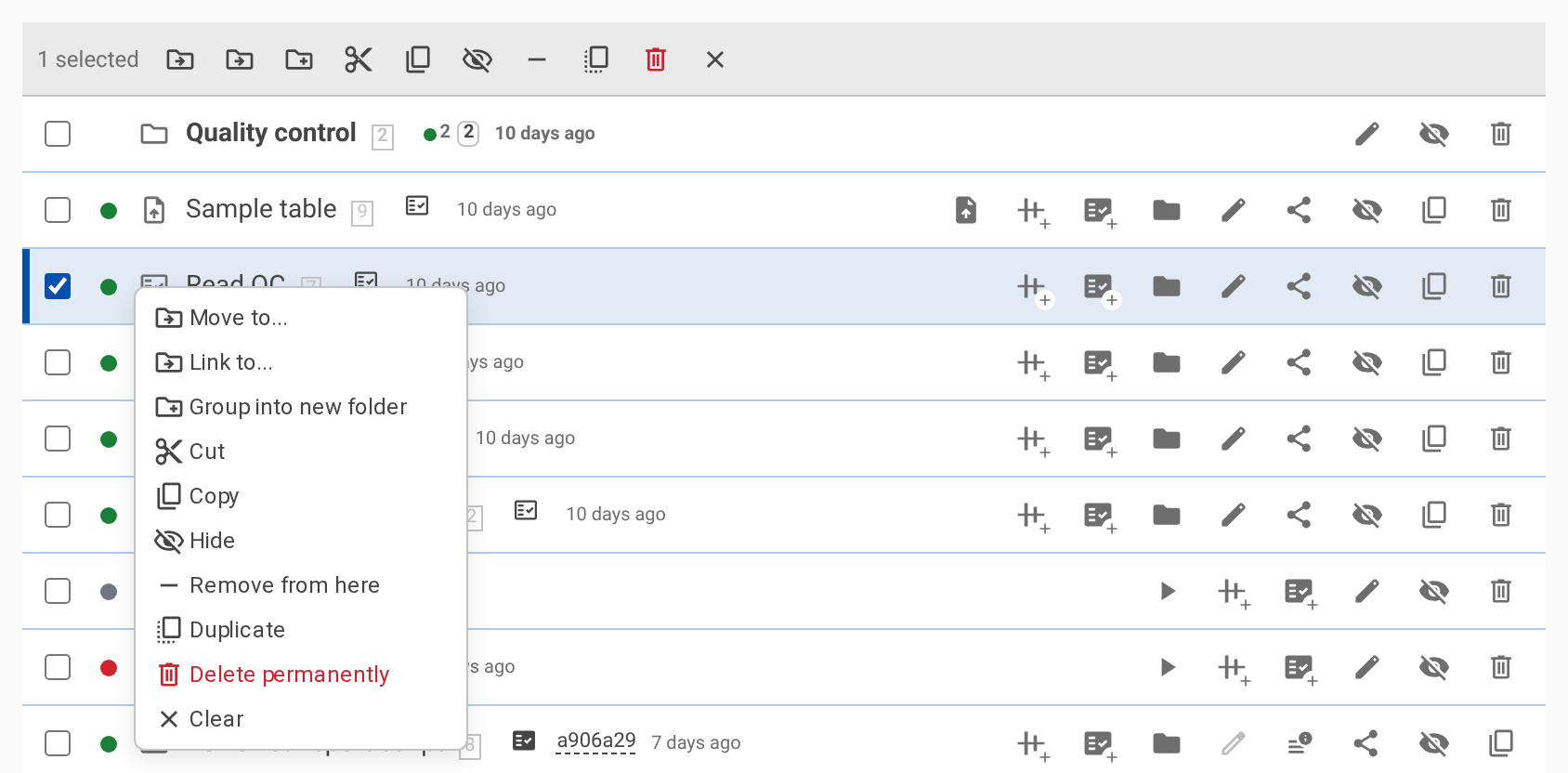
With at least one item selected, an action bar covers the listing header, showing how many you selected and what you can do:
- Move to..., Link to..., and Group into new folder put the selection somewhere else; see Moving, linking, and reordering.
- Cut and Copy put the selection on the clipboard; see Cut, copy, paste, and duplicate.
- Hide or Unhide changes visibility; see Hidden items.
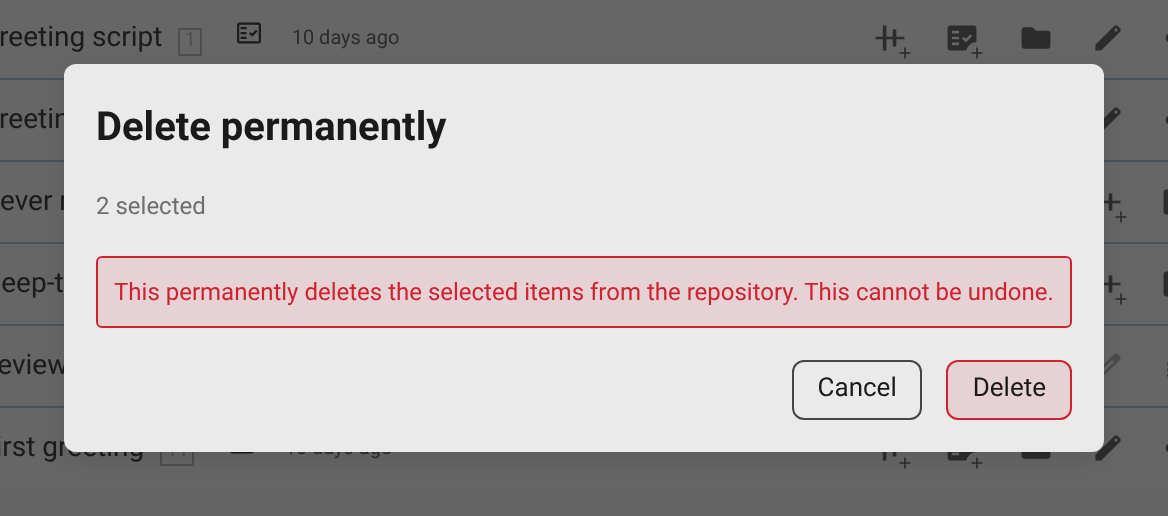
- Remove from here and Delete permanently let go of the selection; see Removing and deleting.
- Duplicate makes copies of the selected items without using the clipboard; see Cut, copy, paste, and duplicate.
- Clear deselects.
When the listing is narrower than 1100 px the buttons show only their icons; the name appears on hover. Right-clicking a row opens the same actions as a context menu, and right-clicking an empty spot in the list offers New folder, plus the paste actions while the clipboard holds items.

Cut, copy, paste, and duplicate
Cut and Copy remember the selection; the clipboard survives moving to another folder. In the folder where you paste:
- items you copied are linked there — the same items, not copies;
- items you cut are moved there, and the clipboard then empties.
Paste as duplicate makes independent copies instead. A copied step gets a new name made from its original: Greeting script becomes Greeting script (Clone), or Greeting script (Clone 2) if that name is taken. A copied folder is named like Quality control (Copy) and links the same children, so both folders show the same steps and subfolders.
The action bar's Duplicate copies the selection the same way without using the clipboard.
Moving, linking, and reordering
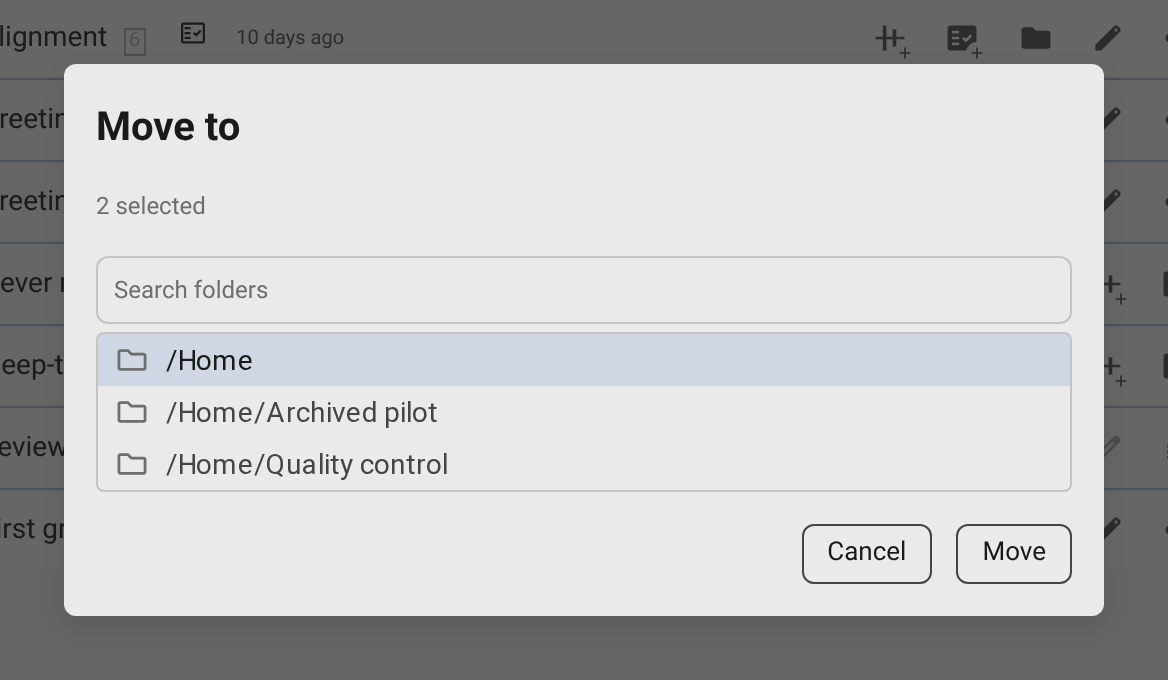
Move to... opens a dialog that lists every folder by path; type in Search folders to filter the list. Choose a target and confirm with Move: the items are taken out of this folder and appended to the target. Link to... is the same dialog with the opposite result — confirm with Link and the items appear in the target while staying here. Both dialogs leave out the selected folders and their subfolders, and Move to... also leaves out the current folder, so a folder can never end up inside itself.
Group into new folder asks for a Folder name, prefilled New folder, creates that folder here, and moves the selection into it.
You can also drag rows: grip a row by its header — there is no separate handle — and drop it on a folder row, a breadcrumb, or a folder in the navigation drawer. A plain drop moves the items; hold Ctrl, Cmd, or Alt while dropping to link them instead. A dashed outline shows the target folder, and a line between rows shows a reorder position. Dragging a selected row takes the whole selection along.
Drop on the top or bottom edge of a row in the same folder to reorder; that works while Sort is Manual and Group by type is off. The order you set is kept per folder, so the same step can sit in different positions in different folders.
Any folder or step can be linked into several folders at once. It is the same item everywhere: editing it in one folder changes it in all of them — it is one step, not a copy. The ways to link something are Link existing, Move to... or Link to..., Copy then Paste, and Ctrl/Cmd/Alt-drag.
Keyboard shortcuts and undo
With a listing on screen: Ctrl/Cmd+A selects all, Ctrl/Cmd+X, Ctrl/Cmd+C, and Ctrl/Cmd+V cut, copy, and paste, Ctrl/Cmd+Z undoes the most recent change, and Delete or Backspace removes the selection from here. Escape closes a dialog or menu first, and otherwise clears the selection. Shortcuts are ignored while you type in a field.
Most changes arrive with a toast whose Undo button reverts exactly that change. Ctrl/Cmd+Z does the same for the most recent change still in the history, which lasts until you reload the tab. Delete permanently is the exception: it has no undo.
Hidden items
Hide takes an item out of the default view without deleting it; Show brings it back. Hidden rows are left out of the listing and hidden folders out of the navigation drawer, unless Show hidden is on, and then they appear dimmed and struck through. Hiding is recorded per folder: the same step can be hidden in one folder and visible in another. Unhide all in the listing header restores every hidden child of the current folder.
Removing and deleting
Two actions take items out of a folder, and they do different things:
- Remove from here — the row's Remove button, the action bar, or Delete/Backspace — takes the items out of this folder only. The steps and folders themselves stay in Pointy and in their other folders. There is no confirmation, and the toast offers Undo. A step that ends up in no folder is unfiled: it still appears in the step search and in Link existing. A folder with no parent left is out of the tree until you link it somewhere again.
- Delete permanently — in the action bar and the context menu, and in red — asks for confirmation, and cannot be undone. For a step it deletes the step and its source files from the repository and removes it from every folder. For a folder it deletes only the folder: the steps and subfolders inside are not deleted, they stay in their other folders, and a step left in no folder becomes unfiled. Home cannot be deleted.
Pointy refuses some deletes: a step under review must have its review removed first, and a step that other steps depend on cannot be deleted. Delete permanently is not offered while a reviewed step is selected, and a reviewed step's row hides Remove, but Remove from here in the action bar still takes it out of the folder. If the server refuses anyway, the toast shows the reason and the change is discarded.
Searching for a step
The search box at the top right of every folder page finds steps, not folders. Results appear as you type, in the form [<id>] (<type>) <name> — <folder path>. Matching covers the whole line, so typing part of a folder name also lists the steps that sit in it. Steps that are in no folder are included, labelled /unfiled.
Selecting a result opens a folder that contains the step and highlights its row. To bring an unfiled step into a folder, open that folder and use Link existing.

When changes reach Git
Organize changes — moving, linking, removing from here, hiding, unhiding, reordering, pasting, and deleting — appear in the page immediately and are sent to Git together in one commit about five seconds after your last change. If you close or leave the page before that, the pending changes are sent as the page goes away. Creating a folder or a step, renaming, and saving the folder form are committed immediately instead.
If the server refuses a change, the toast shows its reason, the change is discarded, and the folder reloads from Git.
Read-only views
A share link can open a folder at a fixed commit; its URL carries ?commit=. In such a view you can still browse folders, sort and group the listing, show hidden items, search for steps, read the rollups, and copy share links. Everything that would change the repository is gone: no checkboxes or action bar, no New menu, Link existing, Unhide all, or Paste, no dragging, no Edit project, and no inline rename. Step rows offer Inspect Parameters instead of Edit. An older version's status bar offers View current to return to the latest state.
Continue with Working with Steps or Running Steps and Viewing Results.
