Changesets
Reviewing and applying changes
When the agent has made edits, a Changeset card appears at the end of the chat. It lists the changed files and shows what was added or removed; each file's diff is open and can be folded away. The card's colour and label show where the changes stand. A changeset is simply the group of edits you can apply or discard together.
Auto-apply in the panel header controls what happens when a turn succeeds. It is on by default. With it on, Pointy applies the turn's changes to the shared branch as the last step of a successful turn: the card shows Applying, then Applied once the branch is updated. With it off, the turn ends with a Pending card and buttons to apply or discard. Your choice is remembered in this browser, follows your other tabs, and also changes turns already running from this browser.
A turn that fails or is stopped is not applied automatically, even with auto-apply on. Its changes wait on a Pending card. With auto-apply on, the next successful turn applies them; with it off, apply or discard them yourself while the agent is idle.
Check that it changes the steps and parameters you intended. Read any changed scripts as well as the agent's explanation. If something is unclear, ask the agent to explain or revise it.
An active changeset card offers Apply changes and Discard changeset while the agent is idle, whether auto-apply is on or off.
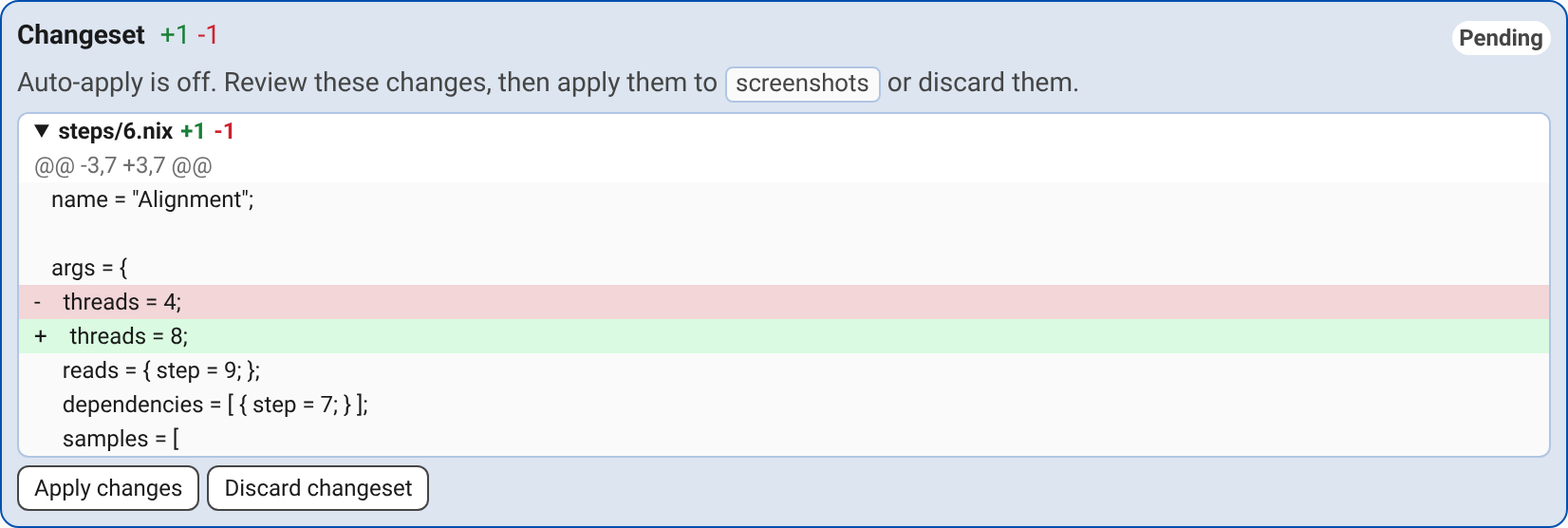
The changeset shows its status:
- Pending: edits are waiting. With auto-apply on, they are applied when the next turn succeeds; with it off, apply or discard them.
- Applying: Pointy is applying the edits to the shared branch.
- Applied or Discarded: the record of an earlier changeset, after Pointy applied it or it was discarded.
- Conflict: newer changes on the shared branch conflict with the edits, so they could not be applied.
- Not applied: Pointy refused the edits because they would introduce evaluation failures, or because it is still fixing them.
Applying changes
Choose Apply changes to save the edits to the shared folders yourself. The button is on the card while the agent is not working. Pointy checks for newer changes and evaluation failures first. If newer changes conflict, or the result would not evaluate, Pointy refuses them and hands them back to the agent with the reason; the chat shows the agent fixing them without a new message from you. For a conflict, the agent works on a copy that combines both sides, so the result keeps the shared branch's changes as well as its own. The card stays red while the fix is prepared. With auto-apply on, the fixed changeset is applied at the end of that turn; with it off, review the card and choose Apply changes again.
Pointy stops starting fixes on its own after two automatic turns in a row. If the problem remains after that, the card stays Conflict or Not applied until you write or apply again. When the problem remains, either action sends the reason for the refusal back to the agent.
If applying would leave a folder or step in a state that does not evaluate, Pointy does not apply it. Your original folders are not overwritten just because the proposal could not be applied.
After a successful apply, the folder page refreshes and the chat records what was applied, so you can continue from the applied state. You can also open the step's Inspect Parameters or Edit form to check it or make a manual adjustment.
Applying an edit is not the same as checking its scientific result. Run the affected steps, inspect their outputs, and review the results when you are satisfied.
A reviewed step is locked for the agent too: its files are read-only in the agent's copy. If you review a step while the agent is working, Pointy leaves that step's edits out when it applies the changeset and names the step on the applied card; if nothing else remains, the card is recorded as discarded. Remove the review first, or ask the agent to make a new copy so the reviewed result stays intact.
Discarding changes
Choose Discard changeset to throw away edits that have not been applied. Pointy resets the chat's copy to the latest saved version, records the decision as a Discarded card, and keeps the chat open for further work. This does not undo changes you applied earlier.
Apply and discard are available only while the agent is not working.
What the agent can change
The agent can create and edit folders, steps, and step source files. It cannot change the instance's templates or software configuration; if it edits anything else, Pointy leaves those edits out of the changeset and reports them in the chat. Ask your administrator if an analysis needs a new template or a change to the available software.
Each chat works on a separate copy of the saved folders and steps. Pointy brings in newer saved changes before the next request where possible, and checks again when changes are applied. This lets the agent work without changing the analysis other people are using until the changes are applied.